Browser Extension
This feature is only available on the Pro plan. Upgrade.
The browser extension is in early-release. If you have any feedback or suggestions, please let us know!
Some features are currently not available in the browser extension. We are working to add these features soon.
- Platform Events
- Google Drive Integration
- Any feature that requires two orgs (e.g. deploying/comparing metadata from one org to another)
- Note: You can still deploy metadata by manually downloading the package from org 1, then uploading to org 2
The Jetstream browser extension allows you to quickly access your Salesforce orgs and metadata on any Salesforce environment without having to connect the org in Jetstream.
When you use the browser extension, none of your data is processed or stored by Jetstream. The browser extension is a standalone tool that only interacts with the Salesforce API directly from your browser. Aside from logging in, there is not any communication with the Jetstream server.
Installation
Install the browser extension from the Chrome Web Store.
Once installed, you may want to consider pinning the extension to your browser toolbar for easy access.
Logging In
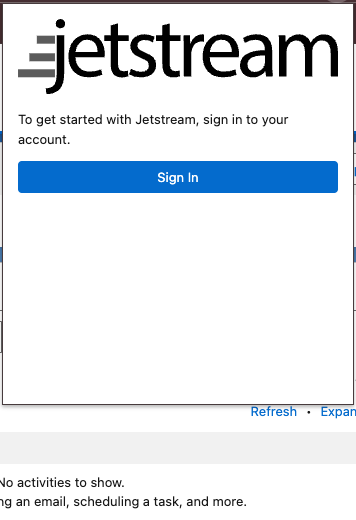
After installing the browser extension, click on the Jetstream icon in your browser toolbar to open the popup to login.
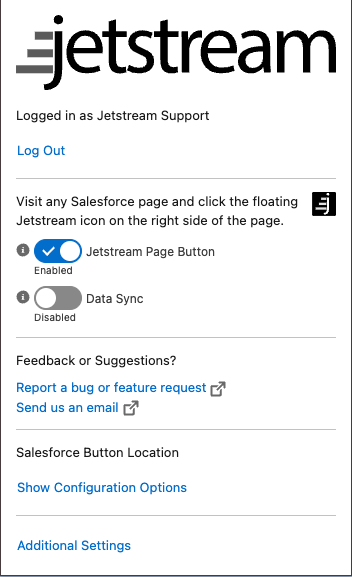
Once you are logged in, the browser extension will indicate that you are logged in and give you some configuration options.
Usage
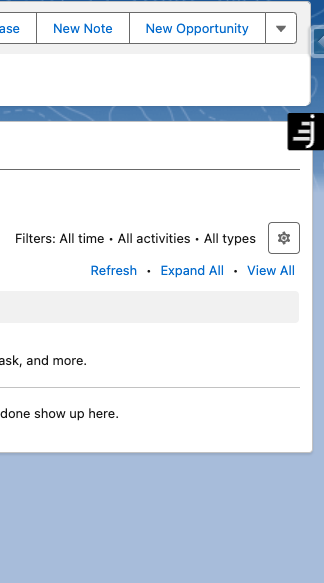
Visit any Salesforce page and you will see a Jetstream Icon conveniently located in the right side of the page. Click on the icon to open the Jetstream browser extension.
Using the Page Popup
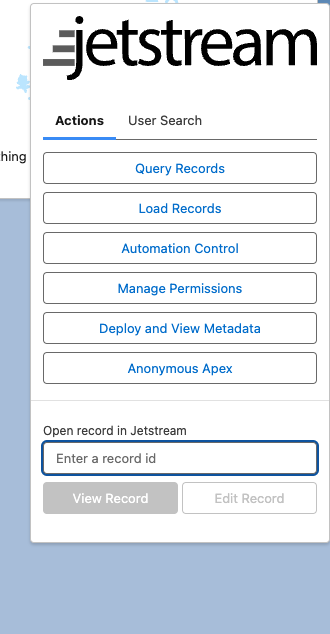
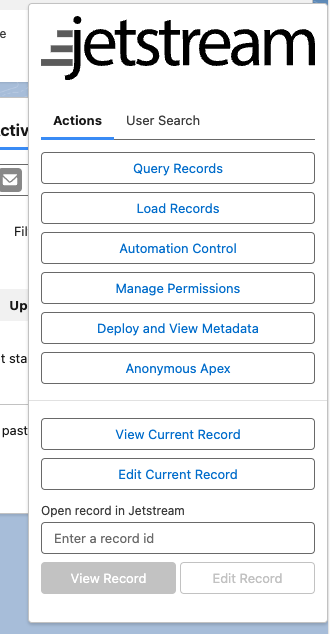
Open the Jetstream browser extension on any Salesforce page to quickly access the following features:
- Quick access to common features, such as: Query, Load, Automation Control, and Permission Manager
- View or edit the currently open record (appears when you visit a record page)
- Paste in a record id to view or edit any record in Jetstream
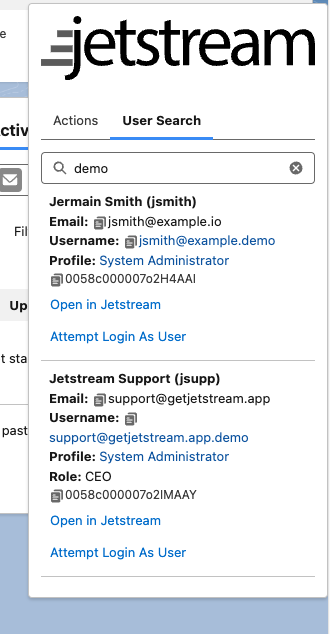
- Search for any user in your org with the option to open in Salesforce or Jetstream directly
- You can also login as the user if you have permission to do so
Options
You can temporarily disable the Salesforce page floating button by clicking on the Jetstream icon in the browser toolbar and toggling the "Jetstream Page Button" to the disabled position.
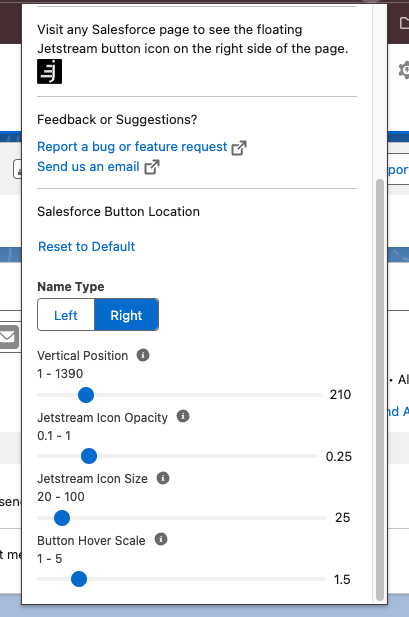
You can also adjust the floating button position, size, and opacity by choosing the Show Configuration Options button.
Additional Option
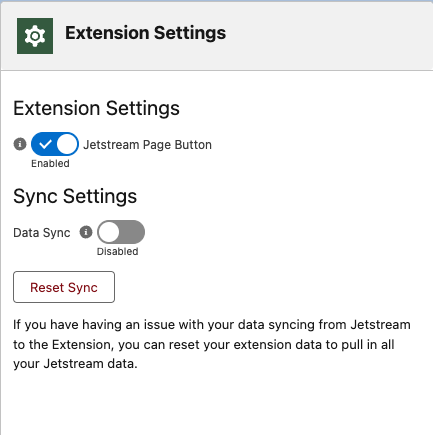
From the Additional Options menu, you can also reset your history sync to push and pull all records from the Jetstream Server.