Apex Test Runner
Run Apex tests from Jetstream without opening the Developer Console — select classes or individual test methods, watch the run progress live, and explore code coverage with per-line highlighting.
Running tests
On the Run Tests tab, Jetstream lists every test class in your org. Search for classes, check the ones you want, or expand a class to pick individual test methods. Press Run Selected Tests to start an asynchronous test run — you are automatically taken to the Test Runs tab to watch progress.
The first time you open the page, Jetstream analyzes your org's classes to find test classes and their methods. The results are cached, so subsequent visits are instant — use Refresh Test Classes after adding or changing test classes in your org.
If a class shows as methods unavailable, Salesforce could not provide its method information (usually because the class needs to be recompiled). You can still run the entire class.
Test suites
Open Test Suites to run an existing Apex test suite, or open Manage Suites from within it to create, rename, or delete suites and choose which test classes belong to each one. Suite runs use the same run options (Stop After Failures and Skip code coverage) as class runs.
Monitoring test runs
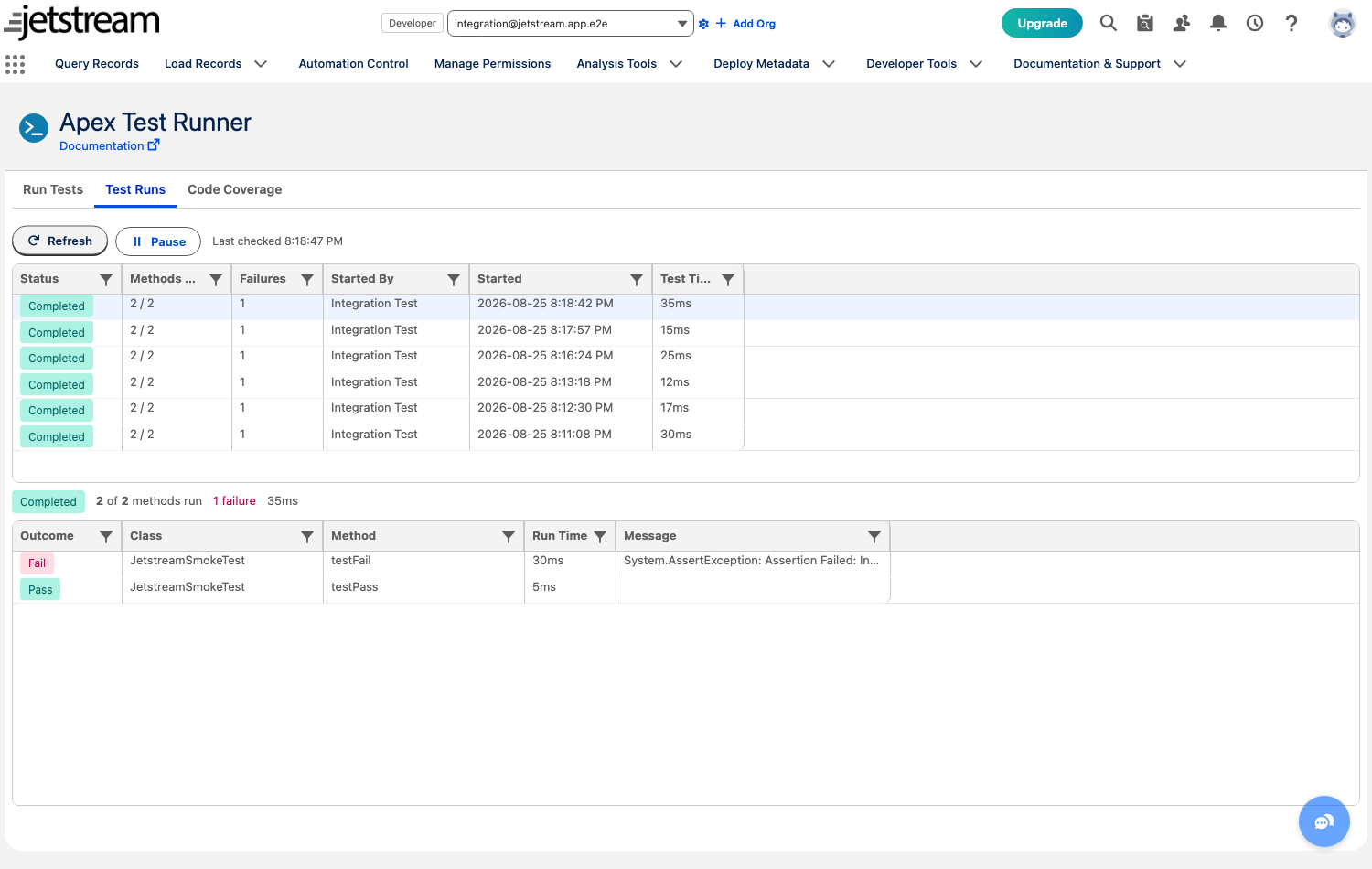
The Test Runs tab shows recent test runs for the org — including runs started outside of Jetstream, such as from the Developer Console, VS Code, or a CI system. While any run is in progress, the list refreshes automatically.
Select a run to see:
- Overall status and how many test methods have completed
- Per-class progress while the run is executing
- Every test method's outcome, runtime, and failure message — select a row to see the full error message, stack trace, and the test's debug log
While the Apex Test Runner page is open, Jetstream keeps a debug trace active for your user so tests you run capture debug logs. Rows with a captured log show a file icon.
Use Abort Remaining Tests to cancel a run that is still in progress. The test class that is currently executing will finish, and all remaining tests are cancelled.
Code coverage
The Code Coverage tab shows your org-wide coverage percentage along with per-class and per-trigger coverage. Salesforce requires 75% org-wide coverage to deploy to production, and classes below 75% are highlighted.
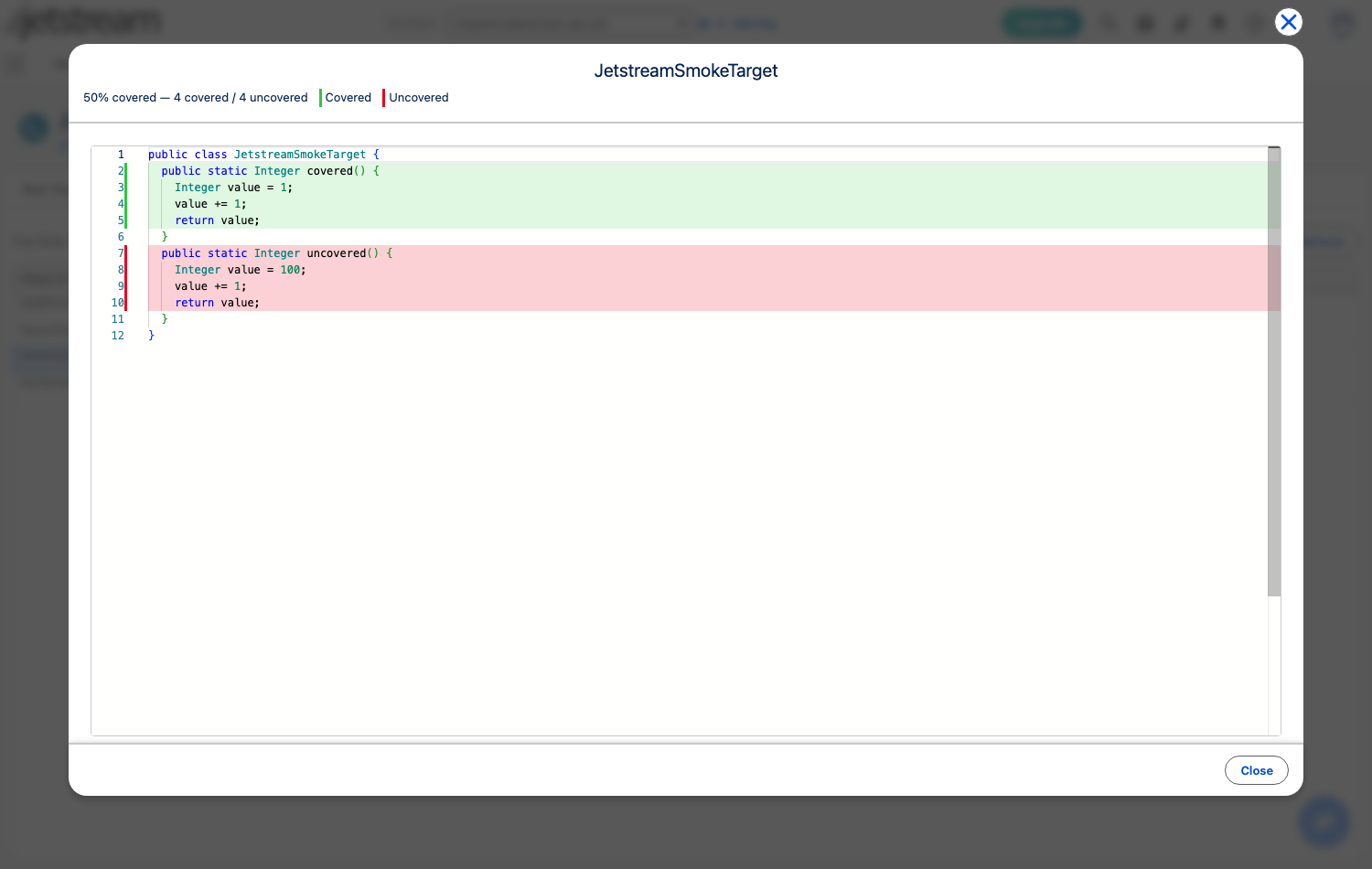
Select any class or trigger to view its source with covered lines highlighted in green and uncovered lines highlighted in red — the same view the Developer Console provides, in a modern editor.
Coverage data is produced by running tests. If coverage looks stale or empty, run the relevant tests and refresh.