Connecting Jetstream to Salesforce
Salesforce Security Updates (September 2025)
Starting in September 2025, Salesforce requires that all 3rd party connected apps are installed in your org for any new authorizations.
Key Impact: New connections to Jetstream will require the app to be installed in your org or specific permissions to be granted.
Security Changes & Impact
Connected Apps Restriction
What's changing:
- All third-party connected apps must be installed in your org for new authorizations
- This affects new connections - existing authorized connections continue working uninterrupted
Who's affected:
- New users trying to connect to Jetstream
- Users connecting to new orgs
- Note: System Administrators are not automatically exempt - they must still install Jetstream or have the appropriate permissions
Installation Requirements
Users will need one of the following to connect to Jetstream:
-
Jetstream installed in the org (recommended)
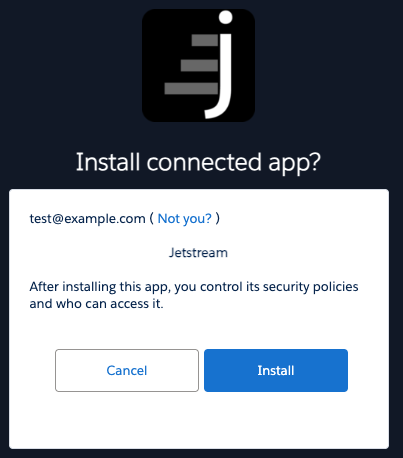
- An admin installs Jetstream from the Connected Apps setup page
- Installation persists and provides governance control
-
"Approve Uninstalled Connected Apps" permission
- Allows connection without installation
- Should be limited to super users or test users
-
"Use Any API Client" permission (bypasses all restrictions)
- Only available if API Access Control is enabled (Requires case with Salesforce Support to enable)
- Use sparingly for security reasons, as it bypasses all restrictions
Installation Guide
Jetstream uses multiple connected apps for different purposes, you may need to go through this process multiple times depending on your usage:
- Jetstream - This connected app is used for core Jetstream functionality in our web application
- Jetstream Auth - This is used if you login to Jetstream via Salesforce (not connecting orgs)
- Jetstream Desktop - This is used if you use our desktop application
For Administrators
- Navigate to Setup → Select "Connected Apps OAuth Usage"
- Find Jetstream in the list (it will only appear after a user attempts to connect)
- Click "Install" to install Jetstream in your org
- Configure security policies as needed for your organization
Once installed, Jetstream will appear in the "Connected Apps" section of Setup, in addition to "Connected Apps OAuth Usage".
There is a Salesforce bug where the Connected App may not show up in Connected App OAuth Usage even after attempting to login.
To resolve this, you may need to Match Production Licenses to Sandbox without a Refresh to ensure the Approve Uninstalled Connected Apps permission exists in the Sandbox. See Salesforce Documentation for more information.
Alternatively you can manually install our connected apps using the links below even if the app is not listed in the OAuth Usage page:
Replace <your_domain> with your Salesforce custom domain.
<your_domain>/identity/app/AppInstallApprovalPage.apexp?app_id=0Ci4S000000CaUB&app_org_id=00D4S000000pHDF<your_domain>/identity/app/AppInstallApprovalPage.apexp?app_id=0Ci4S000000CadS&app_org_id=00D4S000000pHDF<your_domain>/identity/app/AppInstallApprovalPage.apexp?app_id=0Ci4S000000Cact&app_org_id=00D4S000000pHDF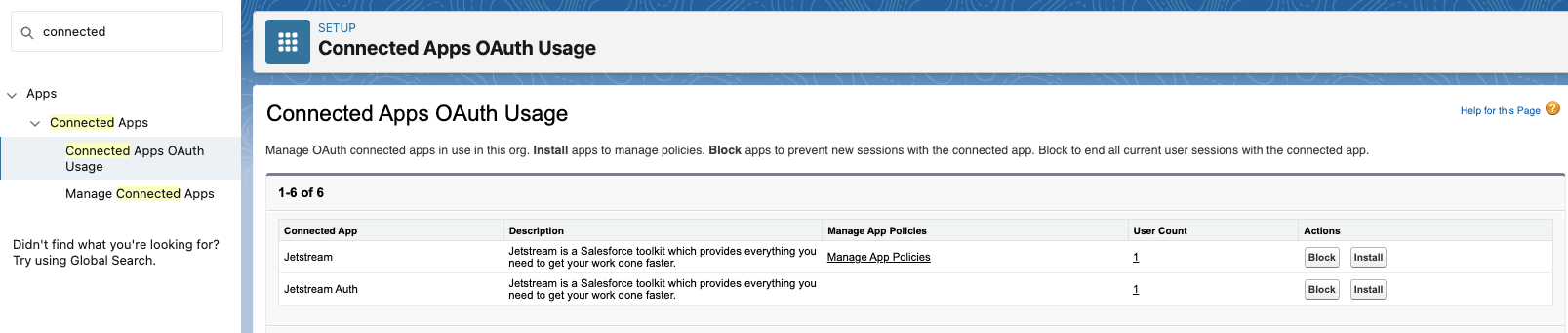
Managing Permissions
After installation, you can:
- Set IP restrictions
- See Jetstream outbound IP addresses for details
- If you are using our desktop app the IP addresses will be based on the user's network, not Jetstream servers as the app runs locally
- Configure session policies
- Control which profiles/permission sets have access
- Set refresh token policies
Permitted Users
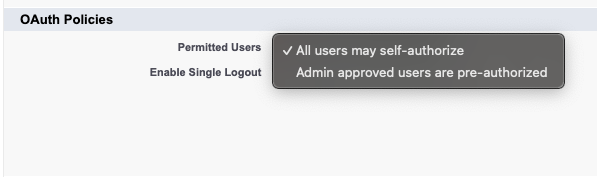
If you want to limit which users are allowed to connect to Jetstream, you can set the "Permitted Users" policy to "Admin approved users are pre-authorized".
Then, assign the connected app to specific profiles or permission sets. Assigning profiles and permission sets configuration appears on the previous page after enabling this option.
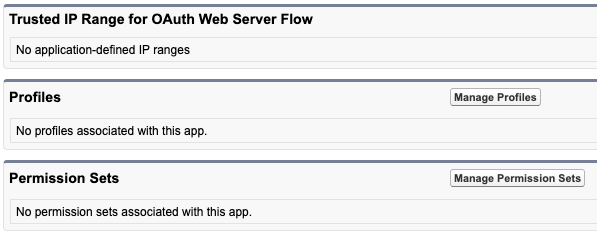
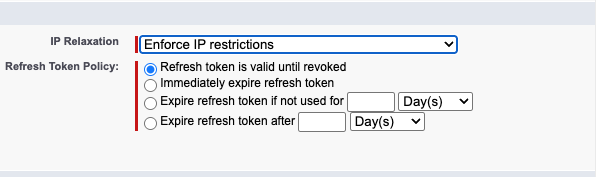
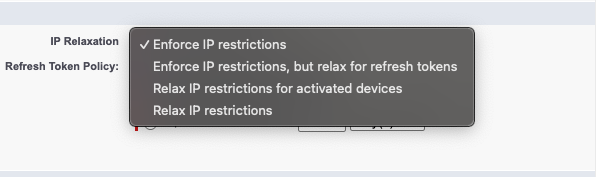
IP Restrictions / Refresh Token Policy
You can set IP restrictions for Jetstream to control which IP addresses are allowed to connect. This is useful for enhancing security by limiting access to known networks.
In addition, you can choose how refresh token expiration is configured. This configuration will determine how often you will need to re-connect your orgs to Jetstream when they are not used for a period of time.
Common Scenarios
Sandbox Refreshes
Important for Sandbox Management:
- If Jetstream is not installed in production, every sandbox refresh will require re-installation
- Best Practice: Install Jetstream in your production org before refreshing sandboxes so the installation is carried forward automatically
Data Loader Changes
The September 2025 changes to Data Loader (removing OAuth Device Flow) do not affect Jetstream. Jetstream uses standard OAuth 2.0 authentication, not Device Flow.
Recommended Actions
For Administrators
- Install Jetstream in all production and sandbox orgs that use it
- Assign permissions carefully:
- Grant "Approve Uninstalled Connected Apps" only to limited test users if needed
- Avoid broad distribution of "Use Any API Client" permission
- Audit profiles/permission sets that should have access to Jetstream
- Document your installation for your team's reference
For Developers & Testers
- Expect connection failures to new orgs without prior installation
- Coordinate with admins to ensure Jetstream is installed before testing
- For sandboxes: Verify Jetstream is installed in the source org before refresh
For End Users
- Existing connections: If Jetstream is already connected in your org, nothing changes
- New connections: Request your admin to install Jetstream if you cannot connect
- Error resolution: If you see authorization errors, contact your Salesforce admin
Quick Summary
| Scenario | Action Required |
|---|---|
| Existing Jetstream connections | None - keeps working |
| New user in org with Jetstream installed | None - works normally |
| New user in org without Jetstream | Admin must install Jetstream |
| Sandbox refresh | Install in production first to auto-carry to sandbox |
| Ad-hoc testing | Request "Approve Uninstalled Connected Apps" permission |
Troubleshooting
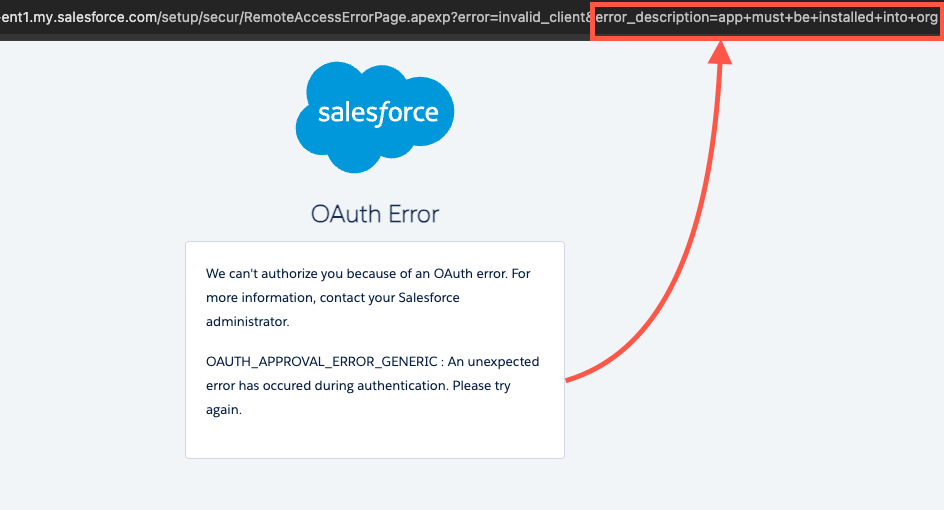
"This app hasn't been approved for use in this organization"
This error means Jetstream needs to be installed. Contact your Salesforce administrator to install Jetstream from the Manage Connected Apps page.
"Failed to complete authorization"
This typically indicates permission issues. Verify that:
- Jetstream is installed in your org
- Your profile/permission set has access to the connected app
- API Access Control settings aren't blocking the connection