Load Related Records
Load records to one or more objects from a single Excel file, with the relationships between records resolved automatically. You give each row a temporary Reference Id, link rows to each other by that Id, and Jetstream works out the load order and fills in the real Salesforce Ids for you.
Two common use cases:
- Create a parent/child hierarchy in one load - for example, insert Accounts, Contacts, and Opportunities together, with every Contact and Opportunity linked to the correct new Account. Normally this would take multiple loads plus External Ids or Excel vlookups to stitch the files together.
- Migrate records from one org to another - query the records from org 1, use each record's Id as its Reference Id, and load the file into org 2. Exported lookup columns already contain the source org Ids, so the relationships come along without any extra file prep.
Download the example Excel template from the top of the page to get started. The template has instructions with working examples.
Preparing your file
Create one worksheet for each object and operation combination. Every worksheet uses the same fixed layout:
| Cell / Row | Contents |
|---|---|
| B1 | Object API name, e.g. Account |
| B2 | Operation: Insert, Update, or Upsert |
| B3 | External Id field API name - required for Upsert only, leave blank otherwise |
| Row 5 | Column headers. Cell A5 is the Reference Id column header - it can have any unique name. The remaining headers are field API names. |
| Row 6+ | Your records, one per row |
Any worksheet whose name contains "instructions" (in any casing) is skipped, so you can keep notes or the template instructions in your file.
Reference Ids
Every record needs a Reference Id in column A:
- It must be unique across all worksheets in the file.
- It can contain letters, numbers, and underscores, and must start with a letter or number.
- It is only used during the load to link records together - it is never saved to Salesforce.
- Tip: when migrating records between orgs, use each record's Id from the source org as its Reference Id. Lookup columns you export from the source org will then already contain valid Reference Ids.
Building a file from query results
Instead of creating the file by hand, you can generate it from the Query page. Run your query, click Download, and choose the Load template (Excel) format. Each record's Id becomes its Reference Id and the operation is set to Insert, so the file is ready to load into another org.
If your query includes a sub-query, e.g. SELECT Id, Name, (SELECT Id, LastName FROM Contacts) FROM Account, each sub-query becomes its own worksheet with the lookup back to the parent already linked, so the child records are created against the newly inserted parent record. Keep the 500 records per group limit in mind - a parent and all of its related records count as one group.
Open the downloaded file and adjust it before loading: change the operation, remove columns you do not want to load, and wrap any other lookup column headers in curly braces to link them to other rows in the file.
Linking records
There are three ways to set a lookup field on a record in your file:
- Link a whole column - wrap the column header in curly braces, e.g.
{AccountId}. Every value in that column is treated as the Reference Id of another row in the workbook. Values can be left blank for rows that have no parent. - Link a single cell - keep a plain header (e.g.
AccountId) and wrap just one value in curly braces, e.g.{account1}. Only that row links to another row in the file - the other rows in the column can hold real Salesforce Ids. - Link by external Id - use dot notation in the header with no braces, e.g.
Account.My_External_Id__c. The lookup is set using an external Id value that already exists in the org. Use this when the parent records are not part of this load.
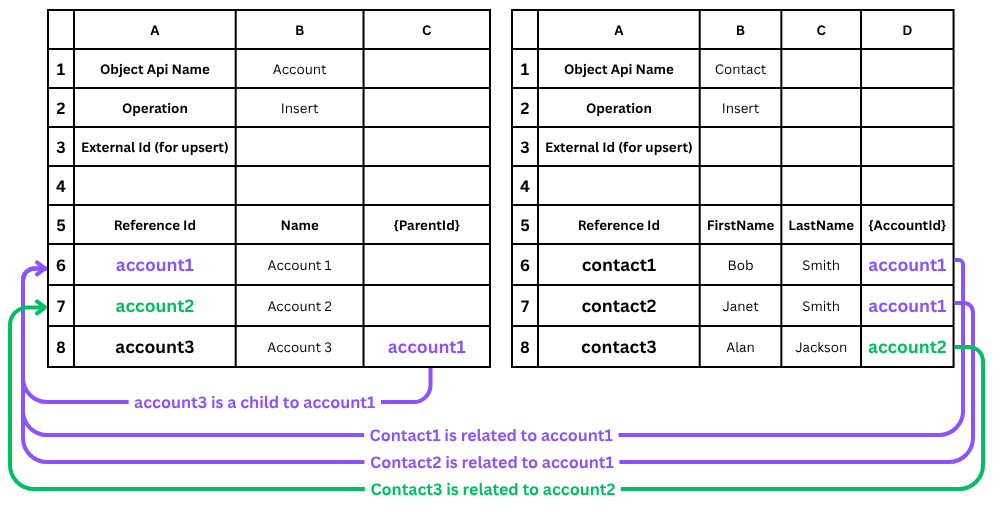
The example below shows both worksheets of a file that creates three Accounts and three Contacts, with account3 linked to account1 as its parent and each Contact linked to the Account it belongs to.
How records are grouped
Rows that link to each other by Reference Id (directly or through other rows) form a group:
Sheet "Accounts"           Sheet "Contacts"

account1  ◄──────────────  contact1  {AccountId} = account1  ┐
account1  ◄──────────────  contact2  {AccountId} = account1  ┴─►  Group 1 (3 records, all-or-nothing)
account2  ◄──────────────  contact3  {AccountId} = account2  ──►  Group 2 (2 records, all-or-nothing)
Each group is sent to Salesforce as a single all-or-nothing transaction: if any record in the group fails, every record in the group is rolled back, so related records are never left in a partial state. Groups that are not linked to each other load independently - a failure in one group has no effect on any other group.
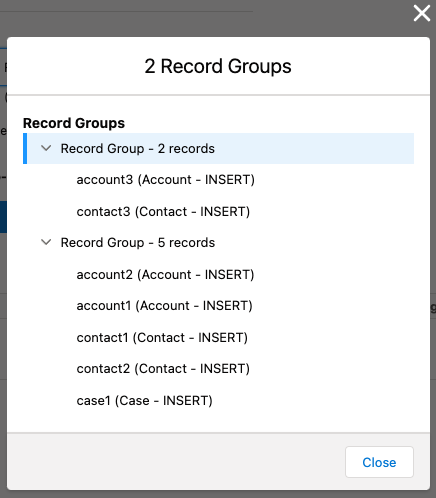
The review screen shows every computed group and its size before anything is loaded, so you can confirm the relationships were detected the way you intended.
Limits
- 500 records per group of related records. This limit is not per worksheet or per file - only records linked to each other count toward it. For example, a file with 5 worksheets of 263 rows each (1,315 records) loads fine when the rows form 263 groups of about 5 records.
- Around 15 different objects per group.
- No overall file limit. Jetstream automatically packs unrelated groups into multiple API calls and sends them one after another.
Reviewing and loading
When you upload your file, Jetstream validates everything before any data is sent to Salesforce:
- Review your data - each worksheet is shown as a preview grid. Validation errors are highlighted on the exact cells and rows where the problem was found, with a message explaining how to fix it. Fix the problems in Excel and upload the file again.
- Review the groups - once the file is valid, you can see how the records were grouped before starting the load.
- Load - progress is shown live while the groups are sent to Salesforce, and the load can be cancelled.
- Results - every worksheet gets a per-record results table showing the created Ids and any failures. Failed groups can be retried after you correct the underlying issue (for example, deactivating a validation rule), and the results can be downloaded.

Columns that will be skipped
Some columns cannot be loaded. These are reported as warnings rather than errors: the column is highlighted in red in the preview and left out of the load, while every other column on those rows still loads. A column is skipped when:
- The header does not match a field on the object - a typo, a field your user cannot access, or a column you added for your own notes.
- The field cannot be written by the operation - system fields such as
CreatedDate,LastModifiedById, andIsDeletedare never writable, and some fields can be set on create but not changed afterwards. This is checked against the operation on that worksheet, so changing the operation re-checks every column.
Fix the header and upload the file again if the data was meant to be loaded. Read-only columns are safe to leave in the file - Salesforce rejects an entire record when it contains a field the operation cannot write, so Jetstream removes them for you.
Troubleshooting
| Error | Cause | Fix |
|---|---|---|
| Cell B1 / B2 / B3 is blank or could not be read | The worksheet does not match the template layout - the object, operation, or external Id cell was moved or left empty | Keep the fixed layout: object API name in B1, operation in B2, external Id in B3 (Upsert only) |
| The operation is not valid | B2 contains something other than Insert, Update, or Upsert | Set B2 to one of the three valid operations |
| An external Id is required for upsert / must be marked as an external id | B3 is blank for an Upsert, the field is missing from your columns, or the field is not marked as an External Id in Salesforce | Add the external Id field API name to B3 and as a data column, and confirm the field is flagged as an External Id in Salesforce |
| The column will be skipped (warning) | The header has a typo, your user cannot access the field, or the field is read-only for this operation - the column is dropped and the rest of the row still loads | Nothing to do for read-only fields; otherwise correct the field API name in row 5 or check field-level security and upload again |
| The Reference Id is used for multiple records | The same Reference Id appears on more than one row - Reference Ids must be unique across all worksheets, not just within one sheet | Give every record a unique Reference Id |
| Rows are missing a Reference Id | Accidental data in unused rows or columns makes Excel think those rows are records | Clear the contents of any unused rows and columns below and beside your data |
| The value refers to a Reference Id that does not exist | A {value} in a linked column has a typo, or curly braces were put around a literal value such as a real Salesforce Id | Fix the typo so it matches a Reference Id in the file, or remove the braces if the value should load as-is |
| These records link to each other in a loop | A circular reference (for example, record A links to B and B links back to A), so there is no valid order to load them | Follow the loop described in the error message and remove one of the {reference} values to break it |
| The record is connected to too many related records (limit is 500 per group) | More than 500 records are linked together into one group - the limit is per group of related records, not per file | Remove some {reference} links, or split the group across multiple loads |