Manage Permissions
Jetstream makes it easy to view and modify object and field level security across many profiles and permission sets for multiple objects.
To get started, choose at least one profile and/or permission set and select one or more objects to view permissions for.
Permission Analysis is the read-only companion to this page. It scans the profiles and permission sets you pick for over-access, dangerous system permissions, field security that is not backed by object access, and unused permission sets, then lets you export any of it to Excel, CSV or JSON. Jump straight there with the Open in Permission Analysis button on this screen.
Adjusting Permissions
By default, field permissions will be shown. You can toggle the Object Permissions by clicking on the Object Permissions tab.
As you make changes, a number will appear in the tab bar indicator the number of modified items.
Changing permissions for an individual item
Click any individual checkbox to toggle the permission setting for the specific object or field.
Some permissions are dependent on other permissions, so as you make changes other checkboxes may get automatically checked or unchecked.
Changing permissions for all fields for one Profile or Permission Set
To apply a change to all visible fields for a specific profile or permission set, click the checkboxes icon or the unchecked outline icon.
You can reset all changes for a profile the same way.
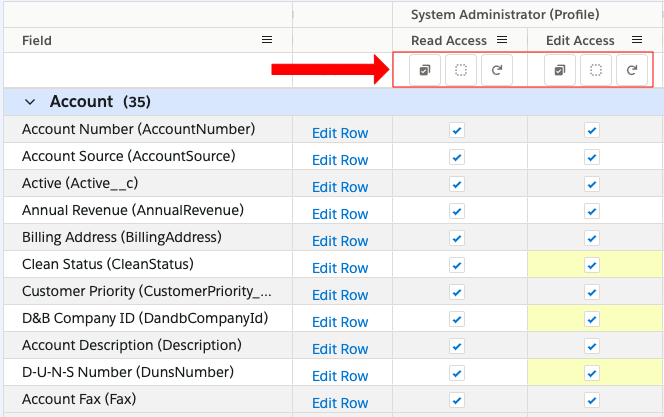
If you apply a filter to limit which fields are shown, only the non-filtered fields will be modified when selecting or unselecting all.
Changing permissions for all Profile and Permission Sets for one field
Click the Edit Row link next to the field to apply a specific permission to all profiles and permission sets for that row.
Click the Edit All link to apply a change to all profiles and permission sets for the non-filtered fields.
See also
- Permission Analysis — read-only audit of object, field, tab and system permissions with automatic issue detection and export.
- Data Analysis (Field Usage) — find unused fields and measure data coverage across your objects.