Team Management
This feature is available on our Team and Enterprise plans. Learn more about our plans and pricing.
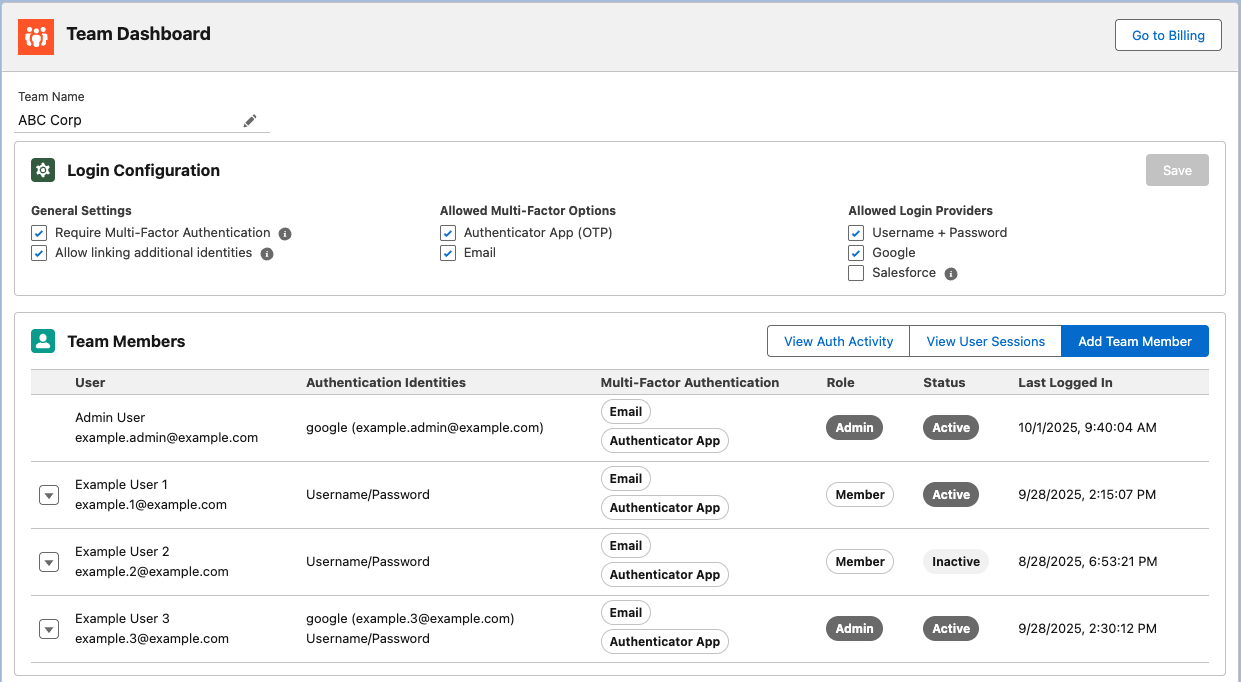
The Team Dashboard is your central hub for managing team members, configuring login security settings, and monitoring team activity. Access the Team Dashboard by navigating to Settings > Team Dashboard.
Overview
The Team Dashboard provides:
- Team name management: Customize your team's display name
- Seat management: See how many seats you have purchased and are using, and buy more or reduce your count
- Login configuration: Control authentication methods and security requirements
- Team member management: Invite, activate, deactivate, and manage team member roles
- Activity monitoring: View authentication activity and active user sessions (Admin only)
Team Name
Click the edit icon next to your team name to update it. The team name is displayed throughout the application and helps identify your organization.
Seats
Your team purchases a fixed number of seats, and that number is the limit on how many people can be on the team at once.
What uses a seat
- Every active team member with the Admin or Member role uses one seat
- Billing role users never use a seat
- A pending invitation for an Admin or Member reserves a seat until it is accepted, cancelled, or expires
Deactivated members and expired invitations do not use a seat.
The Seats card
The Seats card on the Team Dashboard shows how many seats you have purchased, how many are in use, how many are reserved for pending invitations, and how many are still available. If a decrease is scheduled, the card shows the new seat count and the date it takes effect, and availability is measured against that lower count from then on. If seats in use and reserved exceed your limit, the card shows how many you are over.
Changing your seat count
Click Manage Seats on the Seats card to change the number of seats. This is available to Admin and Billing role users.
- Adding seats takes effect immediately. The additional seats are prorated for the remainder of your current billing period and invoiced right away. You will see a preview of the amount due today and your new recurring total before you confirm.
- Removing seats takes effect at the end of your current billing period. Your recurring total is reduced from the next invoice onward and no refund is issued for the current period. Until then, the decrease is shown as pending on the Seats card and the lower count is the limit for adding members. Setting your seat count back to the number you purchased, or higher, before the period ends cancels the pending decrease. Choosing a different lower number replaces the scheduled decrease instead.
- You cannot reduce your seats below the number in use plus the number reserved by pending invitations, or below the seats your plan already includes. Deactivate members or cancel pending invitations first.
If your subscription renewed very recently and you meant to reduce your seats before the renewal, contact support and we will review a refund for the unused seats.
If your team is billed through a purchase order or another agreement with Jetstream, your seat limit is set by that agreement and the Seats card shows it as such. Contact support to change your seat count.
Login Configuration
Configure how team members authenticate and what security requirements they must meet. Changes to login configuration affect all team members on their next login.
General Settings
Require Multi-Factor Authentication
When enabled, all team members must set up Multi-Factor Authentication (MFA) before they can log in. Users without MFA will be prompted to configure it on their next login attempt.
Requiring MFA significantly improves your team's security posture by adding a second layer of authentication beyond passwords.
Allow linking additional identities
When enabled, team members can link multiple authentication providers (e.g., Google, Salesforce) to their account. This allows users to log in using any of their linked identities.
Disabling this option restricts users to a single authentication method, which enhances security but may reduce convenience.
Allowed Multi-Factor Options
Control which MFA methods team members can use:
- Authenticator App (OTP): Time-based one-time passwords using apps like Google Authenticator, Authy, or 1Password
- Email: Verification codes sent via email
At least one MFA method must be enabled.
Allowed Login Providers
Control which authentication methods team members can use to log in:
- Username + Password: Traditional email and password authentication
- Google: Single sign-on using Google accounts
- Salesforce: Single sign-on using Salesforce production environments
At least one login provider must be enabled.
Login with Salesforce requires using a production environment. The connected app name is "Jetstream Auth" and may require installation after the first login attempt. Learn more about installing the connected app.
Saving Changes
After making changes to the login configuration, click the Save button in the top-right corner of the Login Configuration card. Modified fields will be highlighted in yellow to indicate unsaved changes.
Team Members
The Team Members table displays all active members, inactive members, and pending invitations.
Team Member Information
For each team member, you can view:
- User: Name and email address
- Authentication Identities: Login methods linked to the account (e.g., Google, Username/Password)
- Multi-Factor Authentication: Configured MFA methods (e.g., Email, Authenticator App)
- Role: Member role (Admin, Member, or Billing)
- Status: Active or Inactive
- Last Logged In: Timestamp of most recent login
Team Roles
- Admin: Full access to manage team settings, members, and billing
- Member: Standard user access to Jetstream features
- Billing: Access only to billing management (does not use a seat)
Managing Team Members
Adding Team Members
- Click the Add Team Member button
- Select the role for the new member
- Enter the email address
- Click Send Invitation
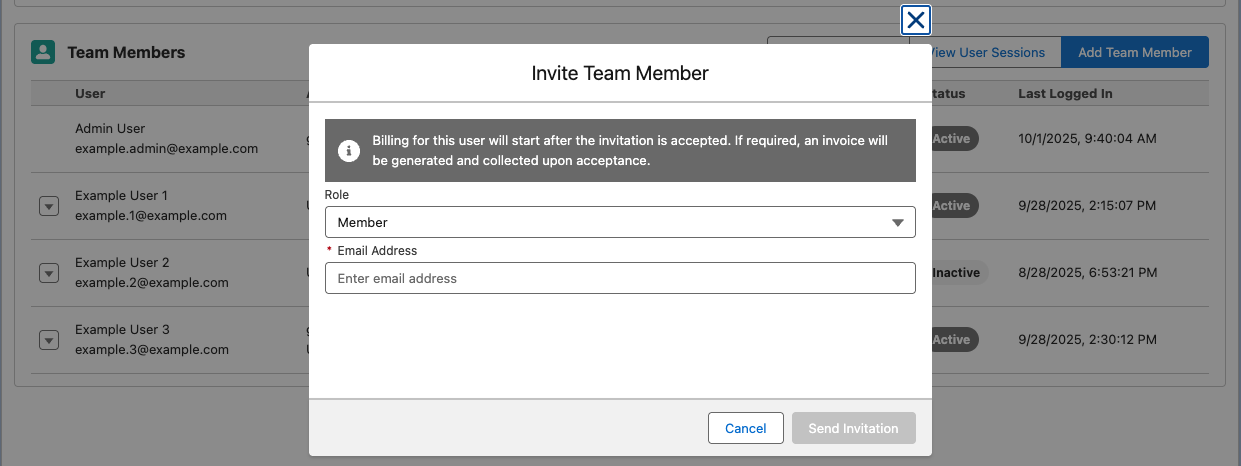
Inviting an Admin or Member reserves one of your purchased seats while the invitation is pending, and the seat stays in use once they accept. If no seat is available, the invitation cannot be sent until you buy more seats, deactivate a member, or cancel another pending invitation. Billing role invitations never need a seat. Sending an invitation does not change what you are billed.
The invited user will receive an email with instructions to accept the invitation and create or link their account.
Editing Team Members
Click the dropdown menu next to a team member to edit their role. Role changes take effect immediately.
Deactivating Team Members
Deactivating a team member:
- Revokes all active sessions immediately
- Prevents the user from logging in
- Frees the user's seat so it can be used by someone else (Billing role users do not use a seat)
- Does not change your purchased seat count or billing
To deactivate a member:
- Click the dropdown menu next to the team member
- Select Deactivate
- Confirm the action
Reactivating Team Members
Reactivating a team member:
- Restores their access to Jetstream
- Requires an available seat when reactivating as an Admin or Member; if all seats are in use, buy more seats first or reactivate the user with the Billing role
- Does not change your purchased seat count or billing
To reactivate a member:
- Click the dropdown menu next to the inactive team member
- Select Reactivate
- Confirm the action
Managing Invitations
Pending invitations are displayed in the Team Members table with a "Pending" status.
For pending invitations, you can:
- Resend Invite: Send another invitation email
- Cancel Invite: Revoke the invitation
If all of your seats are in use, you can buy more from the Seats card, deactivate existing users, or cancel pending invitations before adding new team members. Invitations for the Billing role can always be sent because they do not use a seat.
Activity Monitoring
Available to Admins only
View Authentication Activity
Monitor login attempts and authentication events for your team.
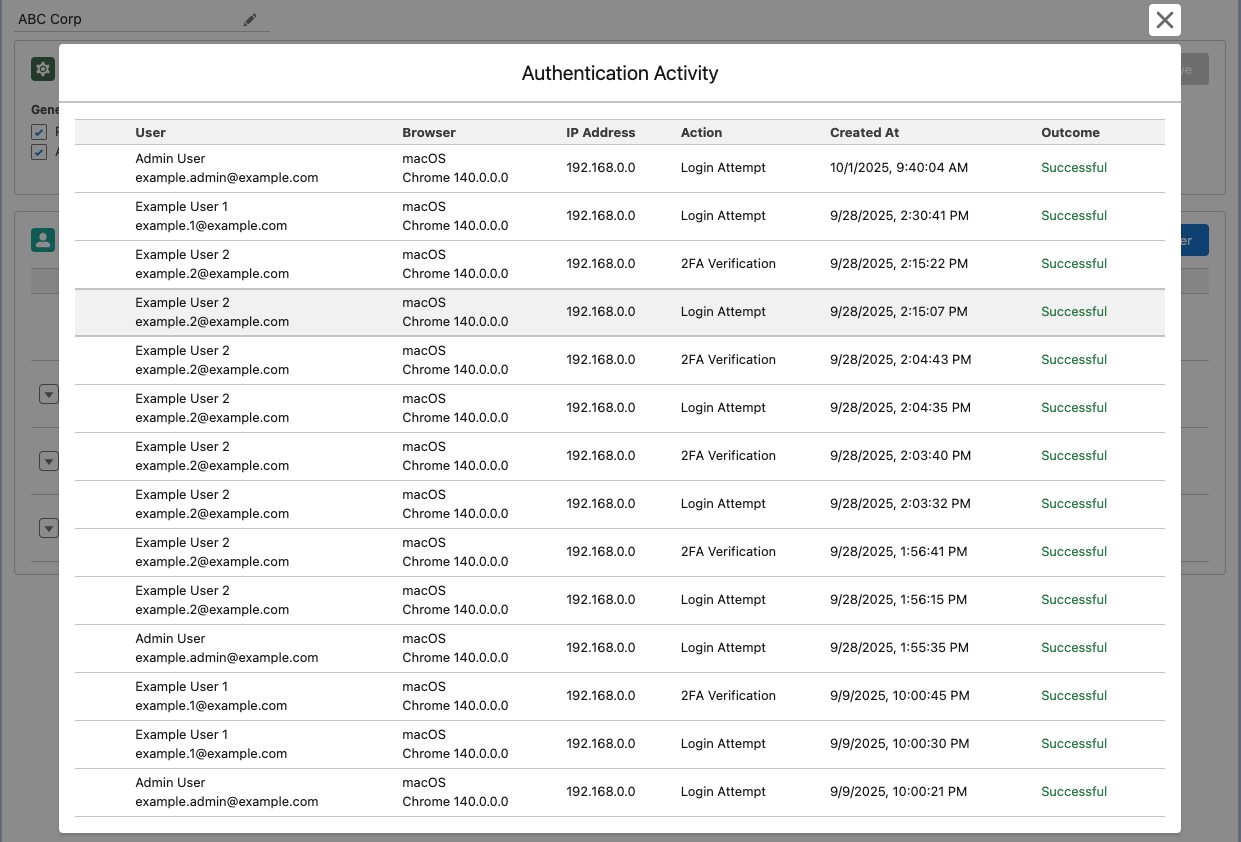
Click View Auth Activity to see:
- User login attempts
- 2FA verification events
- Timestamps and IP addresses
- Success/failure status
- Browser and device information
This information helps you:
- Detect suspicious login attempts
- Verify user access patterns
- Troubleshoot authentication issues
View User Sessions
Monitor active user sessions across your team.
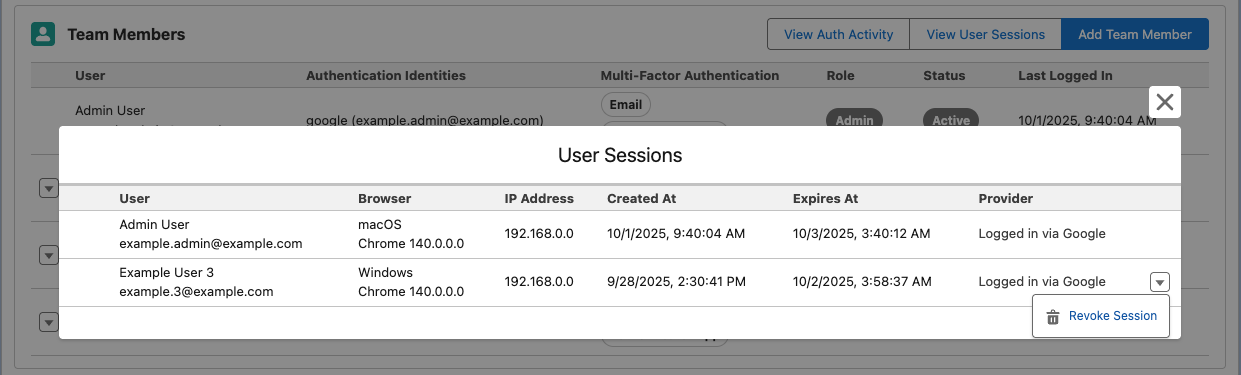
Click View User Sessions to see:
- Currently logged-in users
- Session creation and expiration times
- Browser and device information
- IP addresses
- Authentication provider used
Admins can revoke individual sessions by clicking the dropdown menu next to a session and selecting Revoke Session. This immediately logs the user out from that device.
Regularly review active sessions to ensure only authorized users have access. Revoke any suspicious or unrecognized sessions immediately.
Billing Integration
Access your team's billing information by clicking Go to Billing in the top-right corner of the Team Dashboard. This takes you to the Billing page where you can:
- View and manage subscriptions
- Update payment methods
- Review invoices
- See how many seats you have purchased and how many are in use
Seat changes are made from the Seats card on the Team Dashboard, not from the billing page. See Seats for details.
If your team has a past-due invoice, a warning will appear at the top of the Team Dashboard. Your team will be cancelled if service is not resumed. Visit the billing page or contact support for assistance.
Frequently Asked Questions
How many team members can I add?
As many as you have purchased seats for. Each active Admin or Member uses one seat, and each pending Admin or Member invitation reserves one. You choose your seat count when you subscribe and can change it at any time from the Seats card on the Team Dashboard, with a lower per-seat rate once your team has 6 or more seats.
If you are billed using a purchase order, your seat count is set by your agreement, so please contact support to change it.
Billing role users do not use a seat.
What happens when I reach my seat limit?
When all seats are in use, you can buy more seats from the Seats card, deactivate existing users, or cancel pending invitations before adding new team members. Invitations for the Billing role can still be sent.
When am I charged for added seats?
Immediately. Added seats are prorated for the rest of your current billing period, and the prorated amount is invoiced and collected when you confirm the change. You will see the amount due today and your new recurring total before confirming. Your regular renewal then includes the new seats at the full rate.
Are seat decreases refunded?
No. A decrease takes effect at the end of your current billing period, so the seats stay available until then and no refund is issued for the current period. Your next invoice reflects the lower count. If you reduced your seats just after a renewal, contact support and we will review a refund for the unused seats.
Can I have multiple admins?
Yes, you can assign the Admin role to multiple team members. This allows shared responsibility for team management.
How quickly do login configuration changes take effect?
Login configuration changes take effect on the next login attempt. If existing user sessions do not comply with the new configuration, they will be revoked and the user must login again.
The user making the changes is not affected until their next login.
What happens to deactivated users' data?
Deactivated users' data is preserved. When reactivated, they regain access to their previous work, Salesforce connections, and saved queries.
If you would like to delete a user and their data permanently, contact support.
Can I see who invited a team member?
The invitation details are tracked in your team's records. Contact support if you need this information.