Single Sign-On - Verify Domain Ownership
Before you can set up Single Sign-On (SSO) for your Jetstream team, you need to verify ownership of your organization's domain. This ensures that only authorized users from your organization can access your Jetstream team using SSO.
You may need to contact your IT administrator to help with the domain verification process, as it requires updating DNS settings or adding a verification file to your web server.
Your configured domain must match the email domain of your users. For example, if your users have email addresses like user@example.com, your verified domain should be example.com.
Steps to Verify Domain Ownership
- Go to your Team Dashboard
- Click "Add Domain" under the "Domain Management" section.
- Type in your domain name (e.g., example.com) and click "Continue".
You will be shown a modal with instructions to verify your domain ownership.
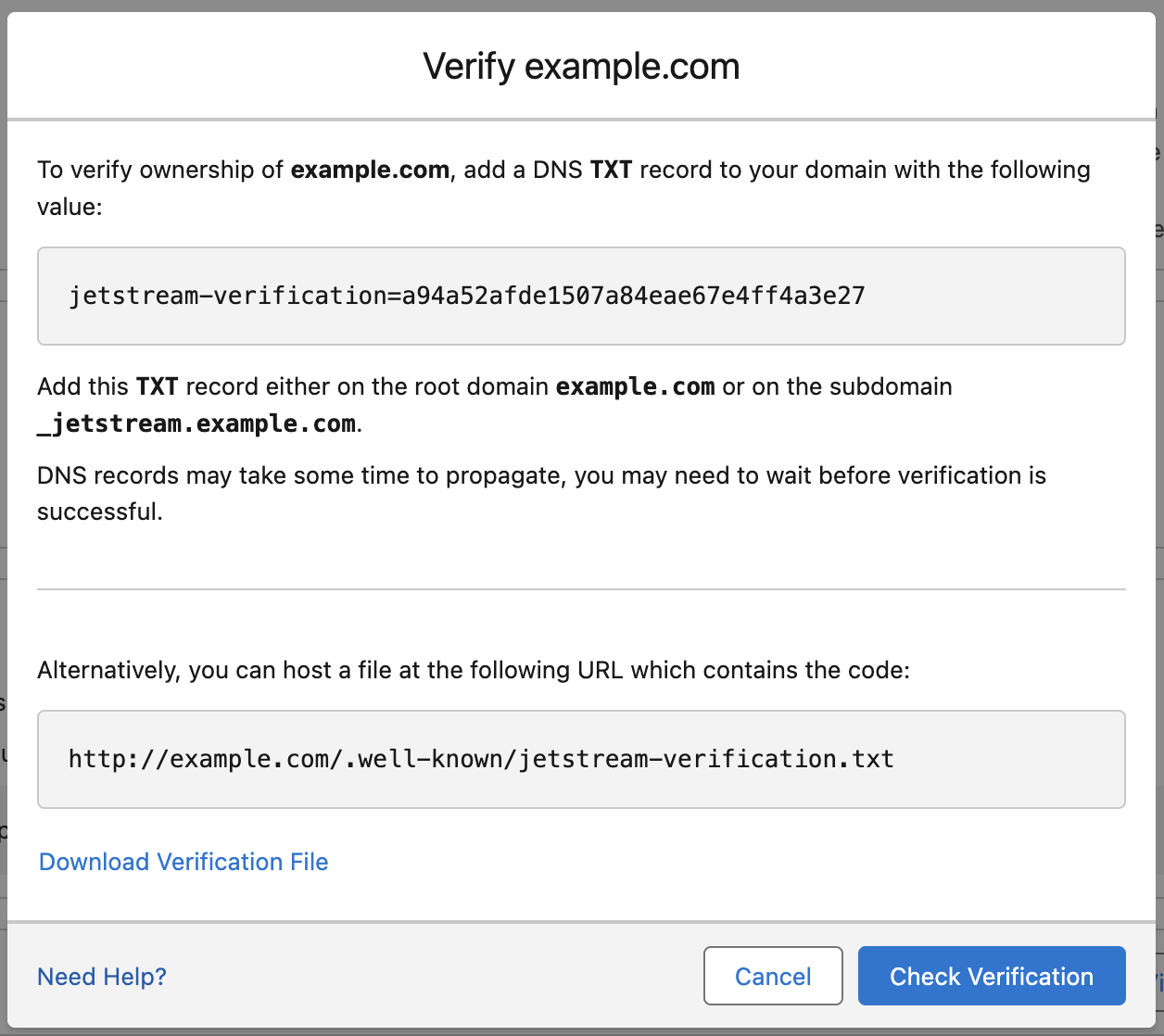
You have two options to verify your domain ownership:
Option 1: Add a DNS TXT Record
Add a DNS TXT record to your domain's DNS settings with the provided verification code.
You can also add the DNS record using the _jetstream subdomain if you do not have access to the root domain's DNS settings.
Option 2: Upload a Verification File
Download the provided verification file and make it available at the path {your domain}/.well-known/jetstream-verification.txt.
Complete the Verification
Click "Check Verification" after adding the DNS record or uploading the verification file.
If the verification is successful, your domain will be marked as verified in the Team Dashboard, and you can proceed to configure SSO for your Jetstream team.
Domain propagation may take some time, so if the verification fails initially, wait a while and try again.
After verification is complete, you can remove the DNS TXT record or the verification file if desired.